UniFormation GK3 · resin printing
Print a piece of racing history
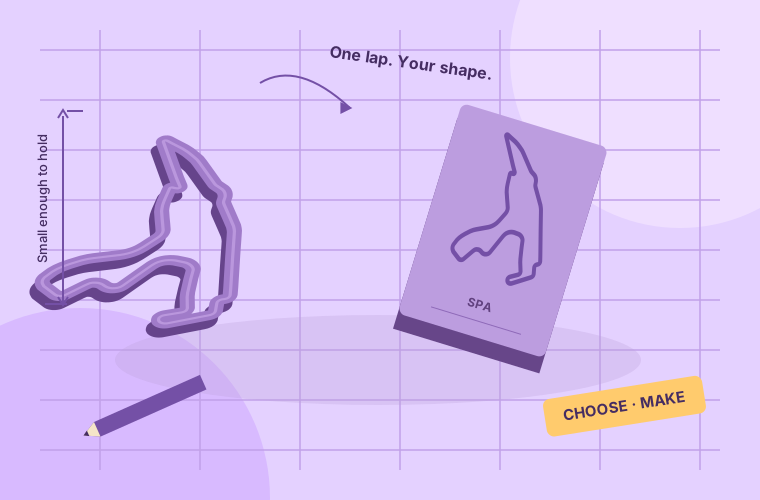
Give your favorite circuit a place on the shelf. Start with a small outline, learn the print workflow, then add a base or bring the landscape along.
Make your circuit- 3 model styles
- One resin color
- STL for your slicer
Choose the right making route
The resin route reproduces the exported model’s shape. The SVG route makes a flat engraved display piece. They are different projects.
| File / tool | Useful for | Preparation |
|---|---|---|
| STL / GK3 resin printer | Outlines, reliefs and detailed terrain solids | Resin profile, supports, raft and sliced printer file |
| STL / FDM printer, such as Snapmaker A350 | A sturdy PLA outline or larger display model | FDM slicing and a small detail test; layer lines and finish differ from the resin preview |
| SVG / Snapmaker laser | A flat circuit engraving and cut display base | Vector preparation and a material test; no terrain or layered sculpture is included |
A CNC router needs a separate CAM setup, suitable stock and verified toolpaths; these files are not ready-to-run CNC jobs. An airbrush is useful for optional finishing after full cure. General cutting and drilling tools are optional for a separately made display mount.
For the resin route
- A GK3 and a compatible UV curing station, with their manuals.
- A computer and a resin slicer supporting the exact GK3 model. Get the manual and slicer downloads from the official GK3 guide.
- The actual compatible resin bottle, its safety data sheet and its print, wash and cure instructions. This guide starts with water-washable resin.
- Resin-appropriate gloves, eye protection, ventilation, a drip tray, dedicated wash containers, a soft brush, wipes and suitable support-removal tools.
- Closable, labeled containers for contaminated wash liquid and resin waste.
Confirm the consumables and protective equipment before starting. Follow local machine induction, shared-material rules and the waste procedure.
Water-washable does not mean drain-safe. Collect every contaminated wash and rinse. Do not pour it into a sink, drain or garden. Use the actual resin’s safety sheet and your local disposal route. Phrozen’s water-washable guide explains the wash, drying and waste considerations.
A small first print
This starter uses little material and lets you test a continuous circuit before committing to a broad resin base.
- Circuit / style
- Spa-Francorchamps / Outline
- Scale / width
- 1 : 20,000 / 3.0 mm
- Details
- Start / finish on; other details off
- Material
- Water-washable resin; match your bottle’s color
- Calculated solid
- About 66.7 × 106.2 × 4 mm / 4.2 mL
Software geometry only, before supports and waste. This is not a physically tested print recipe.
Set up a clean area and a resin area
Keep the computer and clean tools away from the drip tray. Put dedicated wash containers and waste containers beside the resin work area. Prepare the curing station according to its manual.
Check the bottle’s identity, temperature range and GK3 compatibility. Wear the resin’s specified protective equipment, confirm ventilation and keep contaminated gloves away from keyboards and shared surfaces.
Choose the circuit and the amount of model
Open Racing circuits, use Circuit to find Spa-Francorchamps, then open Model. Choose Outline, 1 : 20,000 and a 3.0 mm circuit width.
Outline is the freestanding track. Relief adds an 8 mm base and an elevated ridge. Terrain adds the full sampled landscape. Both base styles are solid, and a large landscape can use substantially more resin.
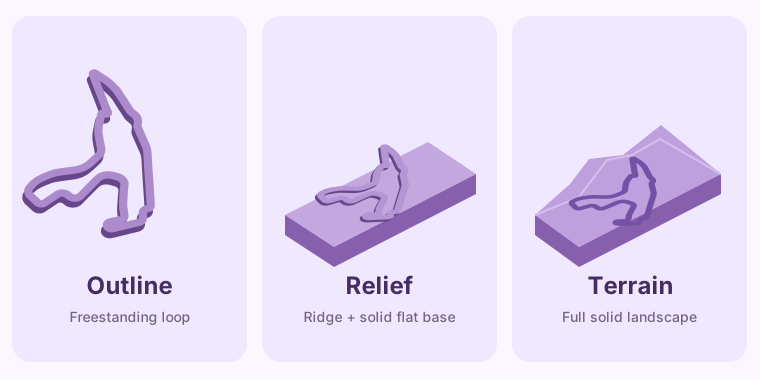
Choose how much surrounding model you want. The solid-volume estimate in the generator changes with style, scale and elevation. At the same 1 : 20,000 scale with 1× elevation, the Spa examples calculate to about 4.2 mL for an outline, 80 mL for relief and 116 mL for terrain, without labels or optional details apart from start/finish. These are solid part volumes, not the amount to pour into the vat. Supports, raft, residue and waste add consumption.
For relief or terrain, use a rectangle to save footprint compared with a square or circle. Keep elevation modest and compare the rebuilt preview before downloading.
Make every visible detail intentional
Under Finish, select the material and color of the resin you will actually use. Standard, ABS-like and tough presets are alternatives for compatible bottles you have; the menu is not a stock list or a printer exposure profile.
Keep start/finish enabled for the starter. Pit lane, sector marks and corner numbers are physical features when enabled, but their positions are schematic. Leave them off if you want the geographic circuit shape without invented marker placement. Corner numbers and engraved labels require a base.
For a base model, keep the engraved label short and inspect the letters at the final size. Thin lettering and grooves need an exposure/detail test. The 3D and top views use the exported solid; resin color and sheen are estimates. Layer lines, support contacts, shrinkage, curing and paint can change the finished appearance.
Check the size, then export the current solid
GK3’s maximum build volume: 211 × 118 × 240 mm. Read the generator’s fit message. A quarter turn may be needed. If the bare model is too large, select Fit model to GK3; this changes the scale and rebuilds both the preview and export.
The fit message checks the bare bounding box. The tilted model, supports and raft must also fit in the slicer. This generator does not automatically split or hollow models. Choose a smaller scale or lighter style when the footprint or solid-volume estimate is too large.
Select Download model, then Print model · STL. Save Print settings · JSON as a record of your choices. The STL is a closed, single-material solid in millimeters, with the underside at Z=0. It includes selected grooves and engravings and has no supports or printer commands.
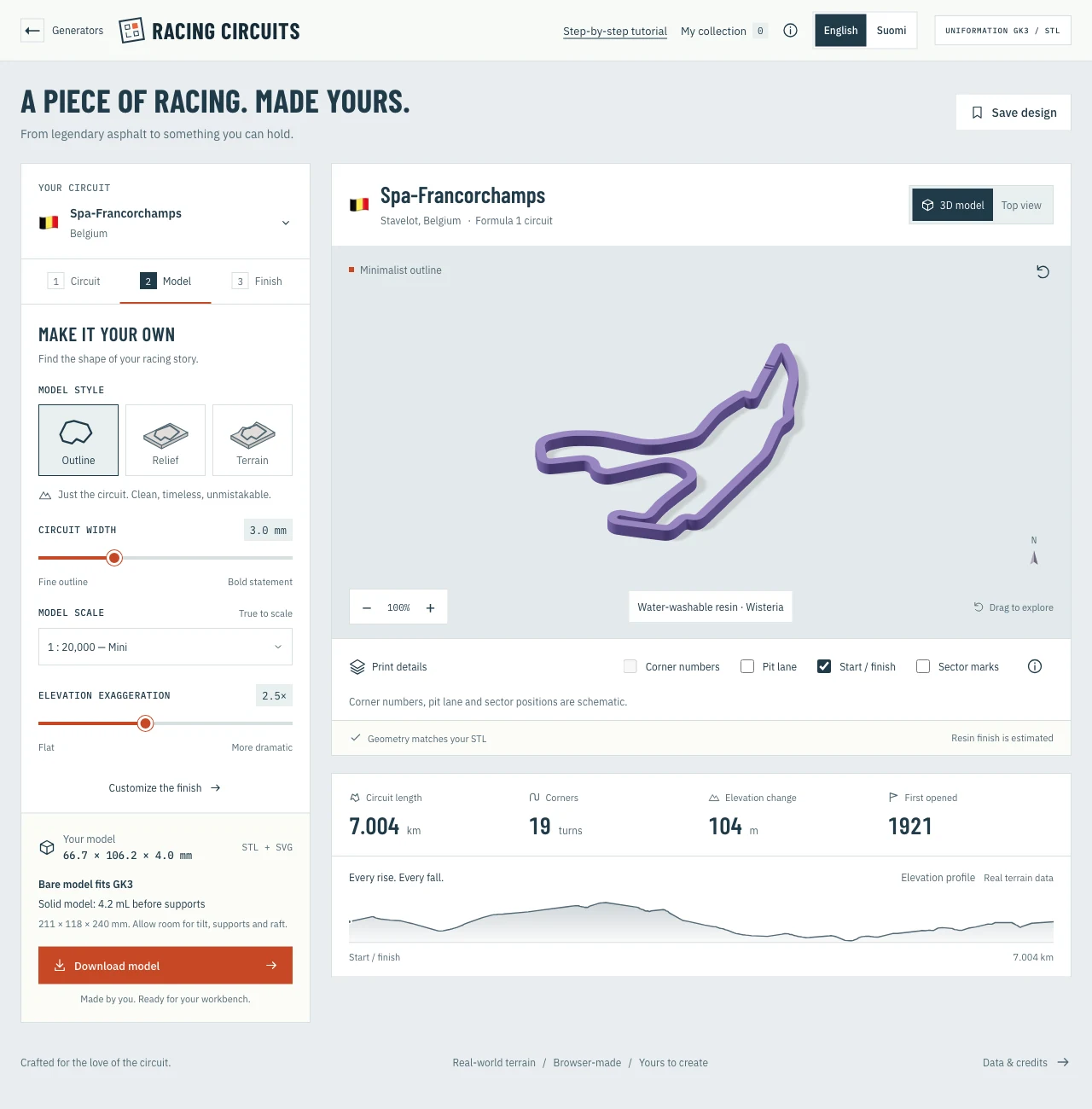
The small outline in the generator. This is a software preview. The printer-fit message does not include the slicer’s supports, raft or tilt. Ready when: the rebuilt model is current, the scale and dimensions are correct, and you have a manageable first print.
Import in millimeters with the exact GK3 profile
Open an operator-approved resin slicer and select the exact GK3 machine profile. Import the STL without automatic resizing. Compare its bounding dimensions with the generator’s dimensions; STL does not encode a unit label, so confirm millimeters.
Select the actual resin and layer-height profile. The generator’s material selector changes the visual estimate and saved settings; it does not calibrate exposure. Keep the slicer project so you can repeat the supported setup.
Orient and support the first-printing edge
Discuss orientation with an experienced operator. A gradual tilt can reduce the area released per layer for a broad base, but it also changes the footprint and height. An outline needs support around its loop and wherever a section first begins printing.
Place support contacts on the underside or less visible edge where possible. Support the first-printing edge, inspect disconnected islands and check the complete supported model against the build volume. Automatic supports are a starting point.
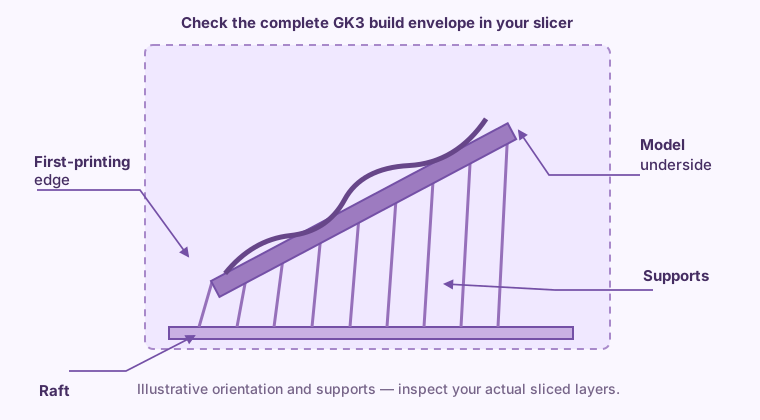
The angle and support pattern are illustrative, not settings for your printer. Check the actual sliced layers and the entire support arrangement. Do not silently hollow a broad terrain model to save resin: cavities and drain placement require another design check, and the resulting geometry would differ from this preview. Start smaller or switch style instead.
Calibrate, slice and run the job
Use a calibrated GK3 profile for the actual resin, layer height and working conditions. If the combination is new, print a small calibration/detail test first. Use the bottle and printer guidance for exposure, bottom layers, lift and rest settings; there is no universal circuit preset.
Slice the supported model and inspect the layer preview from raft to last layer. Use the slicer’s island/risk check where available, correct unsupported features, then slice again. CHITUBOX documents risk detection.
Export the printer-ready file required by the GK3 profile. Follow the printer manual to inspect the vat film, screen and plate, remove cured debris, secure the plate and vat, mix the resin and fill within the specified limits. Verify the transferred file and start the print. After a failure, clean out cured fragments before restarting.
Remove the part and wash with the right process
Follow the printer’s removal procedure, keep drips in the tray and handle the uncured part with resin-appropriate gloves. Use the washing method on the actual bottle. For a water-washable resin that specifies water, use dedicated wash and rinse containers with a gentle brush where needed.
A curing station does not establish which wash liquid or machine is suitable. Do not assume an ultrasonic cleaner can use your resin or liquid: check its manual and the resin instructions. UniFormation’s wash/cure FAQ describes its particular equipment; it is not a specification for an unspecified cleaner.
Collect contaminated liquid, wipes and supports. Remove supports at the stage allowed by the resin instructions, supporting the thin circuit while clipping so you do not snap a long section.
Dry the grooves completely, then post-cure
Inspect lettering, marker grooves and the underside for remaining resin. Wash again where needed, then dry the entire piece fully. Keep uncured parts in the controlled resin area.
Post-cure using the actual resin’s specified UV conditions and the curing-station manual. Expose all sides, including the underside. Use the manufacturer’s procedure rather than judging completion from surface feel alone. There is no universal wash or cure time.
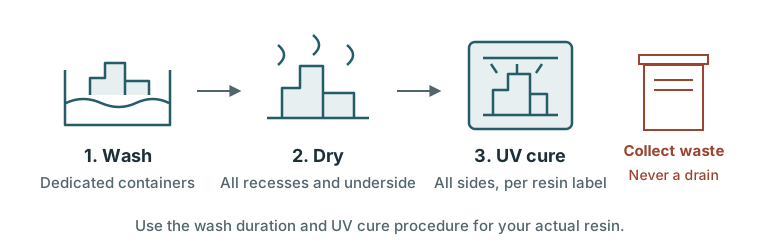
Wash, dry, cure. Keep all resin-contaminated wash liquid for the approved disposal route. Finish the surface and choose a display
Once fully cured, inspect the loop, grooves and base. Smooth support marks carefully with the resin’s dust and protective measures. Test any compatible primer, paint or glue on a spare piece.
Brush paint works for a small object. An airbrush can apply thin coats in a suitable extracted painting area. Paint changes the color and sheen from the resin preview and can fill shallow engravings. Let coatings dry according to their instructions.
A relief or terrain model has its own base. A freestanding outline can sit on a separately made display board; dry-fit and test a compatible adhesive. The SVG below can help make a flat companion piece.
Finished: a cleaned and fully cured circuit model with its thin sections intact and support marks addressed.
A separate flat piece with the laser
The Snapmaker A350’s compatible 40W laser module supports SVG artwork and plywood cutting/engraving. Use the actual module, sheet and local material-use rules. Stock thickness and species need to be checked; the maker’s example settings are not a universal recipe.
- Download Flat engraving drawing · SVG. It contains a base outline, the circuit centerline and an enabled label for base styles. An outline-style export omits the disabled label. It contains no elevation, pit lane, corner markers or terrain layers.
- Import into your laser/vector software in millimeters. Check the base dimensions. Prepare the label as outlines or use the laser software’s supported text handling; the SVG uses editable text.
- Choose what the circuit line means. A line engrave follows its centerline; the SVG stroke width does not create a 3 mm physical track. To engrave a broad band, convert the stroke into filled outline geometry and use an appropriate fill operation.
- Assign engraving to the circuit and label, and cutting to
base-cut. Engrave before cutting. Check alignment, boundary and air/extraction setup, and test settings on a suitable offcut. Watch the job according to the laser operating procedure. - Finish the wood and dry-fit any separately printed circuit before gluing. The wood piece is not the 3D resin preview.
For machine preparation, vector operations, material tests and finishing, follow the illustrated laser city-map tutorial. Use it for the process; use your circuit SVG for the artwork.
If something goes wrong
- The bare model fits, but the supported print does not.
- Check millimeters, the exact GK3 profile and a possible 90° turn. Reduce the scale again to make room for tilt, supports and raft; re-export so the preview stays current.
- The terrain uses more resin than expected.
- It is a solid landscape. Compare the solid-volume estimate with outline or relief, and make a smaller test. The slicer adds supports and raft to that estimate.
- Thin sections break or numbers disappear.
- Increase circuit width, use a short label, turn optional markers off and review exposure and support placement. Test fine details before the full model.
- A base warps or the print pulls loose.
- Review orientation, support coverage and the calibrated resin profile with an experienced operator. Retry a smaller piece.
- The surface is sticky or develops white residue.
- Review washing, complete drying and post-curing against the actual resin instructions. Painting over contamination does not fix it.
- The laser engraving is thinner than the previewed stroke.
- A line operation follows a centerline. Convert the SVG stroke into a filled path if you want a broad engraved band.