UniFormation GK3 · resin printing
Print a little piece of Helsinki
Turn real Helsinki rooftops into a miniature with your GK3. Start small, prepare the model in a resin slicer, then wash, dry and cure the print.
Open Helsinki 3D in a new tab- 12 clear steps
- STL to resin
- A city in your hand

Your workshop kit
- UniFormation GK3, its printing tools and a compatible UV curing station.
- A computer with internet and a resin slicer supporting the exact GK3 model. The official GK3 guide includes slicer downloads and the printer manual.
- Compatible water-washable resin with its label, safety data sheet and printing/post-curing instructions.
- Resin-appropriate gloves, eye protection, a ventilated work area, a drip tray, dedicated wash containers, a soft brush, flush cutters and wipes.
- Labeled, closable containers for contaminated wash liquid and resin waste. Primer, paint and suitable glue are optional.
Confirm that the needed consumables and protective equipment are present before starting. Follow the workshop’s resin induction, shared-material rules and waste procedure.
Water-washable resin still needs controlled handling. Avoid skin contact and splashes. Keep all resin-contaminated water out of sinks and drains, and collect it for the workshop’s waste route. Phrozen’s handling guidance and water-washable resin guidance explain these precautions; use your actual resin’s safety sheet.
A small first print
Start with these design choices. Exposure and support settings still need a test with the actual printer and resin.
- Place / ground area
- Senate Square / 600 × 600 m
- Printed size / base
- 100 × 100 mm / 3 mm
- Features
- Buildings, streets and water
- First attempt
- Ground elevation and More details off; title blank
-
Set up a clean area and a resin work area
Keep the computer and clean tools away from the drip tray. Put your wash containers and waste container beside the resin work area. Prepare the curing station according to its manual.
Check the resin bottle’s identity, mixing instructions, temperature range and compatibility with the GK3. Use gloves and eye protection specified for the resin, and confirm ventilation. Keep contaminated gloves away from the keyboard and other shared surfaces.
-
Select the part of Helsinki you want
Open the generator and choose Senate Square. For the example, keep Area width and Area length at 600 m, with Rotate area at 0°.
The selection rectangle is what becomes your model. Drag its center to move it, or its corner handles to resize it. You can also search for a Helsinki address. Start with a few blocks rather than a huge area so individual roofs remain visible in the miniature.
Small cube icons mark buildings with verified detailed models. Enable Detailed buildings to include all of them inside your selected area. This switch is off by default and adds finer roof and dome shapes to the preview and STL. Small details can disappear at miniature scale.
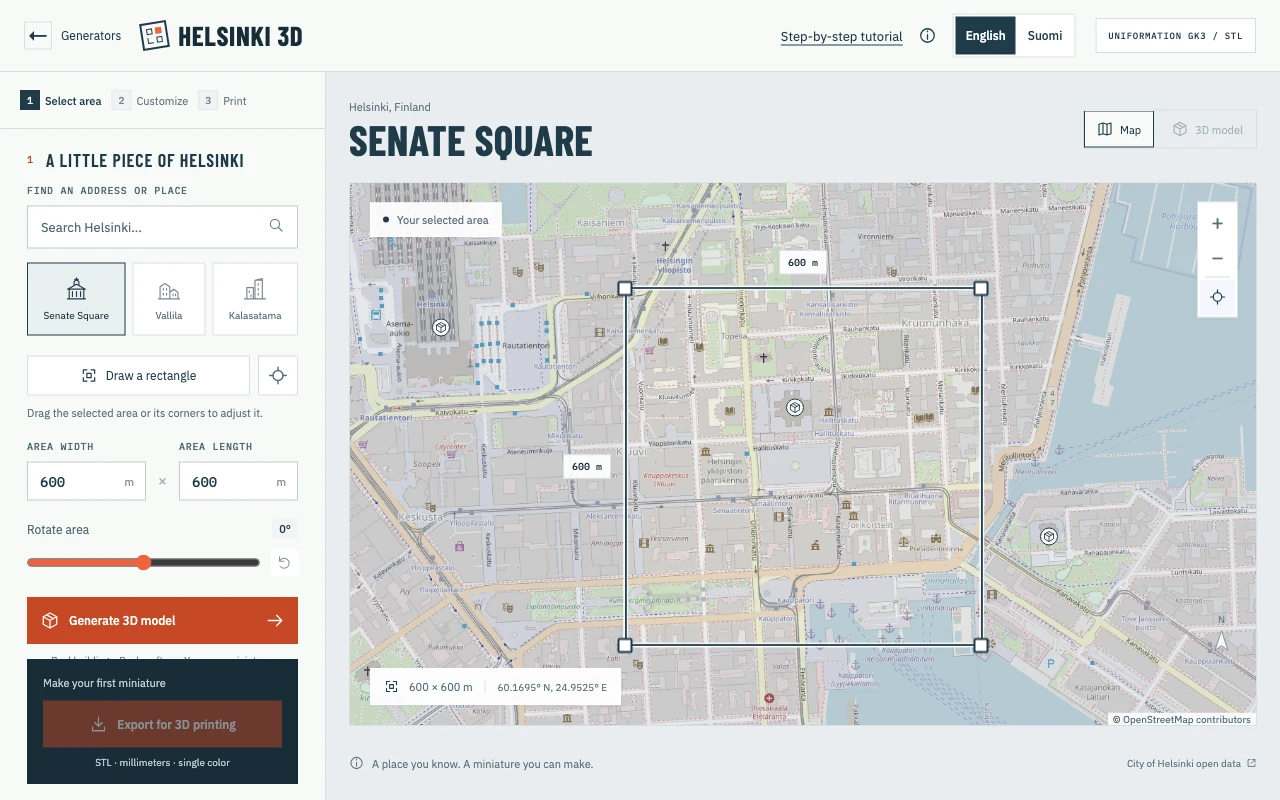
Only the area inside the selection rectangle is included. The area dimensions here are real-world meters; printed dimensions are set later in millimeters. -
Generate and inspect the city geometry
Click Generate 3D model and wait for the city data to load. In the 3D model view, rotate and zoom the preview to inspect the roofs, courtyards and ground.
If required building or terrain data fails, retry or choose a smaller area. Optional layers can be missing with a visible notice. If you move, resize or rotate the geographic selection afterwards, generate it again before exporting.
Ready when: generation has finished, the area is current and the preview contains the buildings you expect.
-
Set a small physical size and a solid base
Under Shape your miniature, choose the 100 mm preset and keep Linked proportions on. For this square selection with no title, check that both printed dimensions read 100 mm. Leave Base thickness at 3 mm.
Keep buildings, streets and water enabled. For the first print, leave Ground elevation and More details off, and leave Title on base empty. After a successful test, try elevation at Natural or enable trees, planting and city objects.
Read the small-detail notice. Thicken fine edges can help small buildings survive; zoom in afterwards to see its effect. The model simplifies roofs into a solid relief; tiny details and open spaces underneath overhangs can be lost. The preview and STL use the same single-material geometry. Match your resin color to the preview when printing.
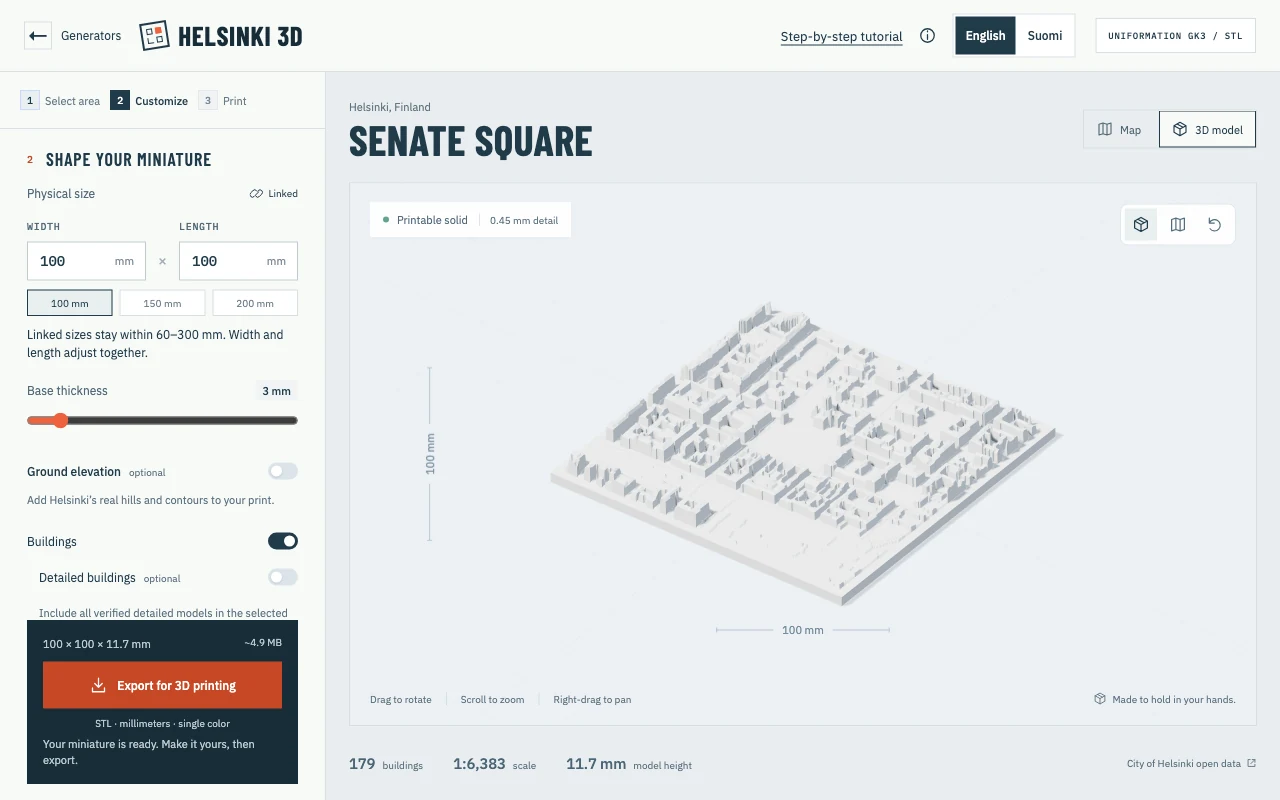
The example after generation and sizing. This is a software preview, not a photographed or tested physical print. Select the picture to view it at full size. -
Check the printer fit and export
Under Ready for the real world, select Uniformation GK3. The generator uses 211 × 118 × 240 mm, matching the manufacturer’s nominal build volume.
Click Export for 3D printing when the model is ready. A model that fits downloads as an STL. A larger footprint can use Split into printable sections to download a ZIP; extract it and keep
PRINT-AND-ASSEMBLY.txtwith the section files. An over-height model needs to be reduced.The fit check measures the model. Tilting it, adding supports and adding a raft all need extra space. Confirm the complete arrangement in the slicer. If a section is too tight, regenerate a smaller model or use Custom printer with an operator-agreed smaller usable volume to leave support clearance.
-
Open the STL in a GK3 resin slicer
Open the supported slicer and select the exact GK3 printer profile, then a profile for the actual resin. Import the STL in millimeters at 100% scale. Check its dimensions against the generator.
For a ZIP project, import one section at a time and keep its filename. Preserve the same scale for every piece so the edges can meet during assembly. Use the solid export for your first attempt; hollowing introduces drainage and internal-cleaning work.
-
Tilt the base and support its underside
For a first supported print, raise the model above the build plate and tilt the base so it starts from an edge rather than exposing the whole broad underside at once. Choose the angle and lift height with the workshop operator using the resin’s working support profile.
Add a raft and supports to the underside and first-printing edge. Keep support contacts off the visible rooftops where possible. Automatic supports are a starting point: inspect the underside, edges and any features that begin without a connection to a previous layer.
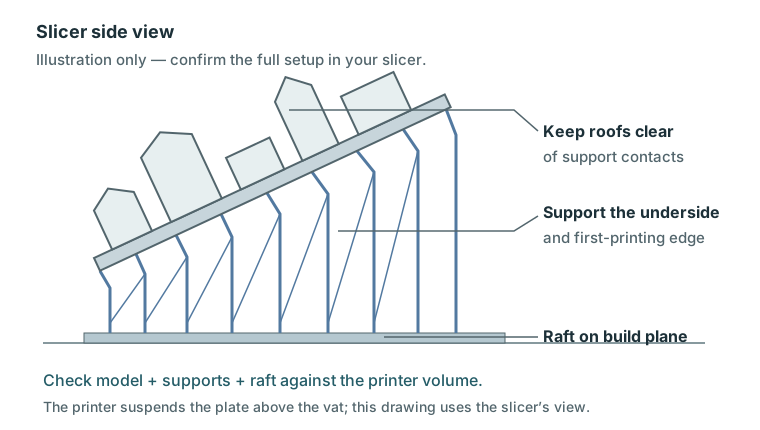
Slicer side view, not a printer assembly drawing. The angle and support spacing are illustrative; use a calibrated arrangement for the actual model and resin. Select the picture to enlarge it. Ready when: model, supports and raft stay within the GK3 volume, the lowest edge is supported and visible roof detail is protected.
-
Calibrate the resin, then slice and inspect every layer
Use an operator-approved GK3/resin profile. If this resin, layer height or printer setup is new, print and evaluate a small exposure calibration model before the city model. Exposure, bottom layers, lift and rest settings depend on the resin and machine.
Slice the supported model. Scrub through the layer preview from raft to final roof. Run the slicer’s island/risk check if available, add support to disconnected features and slice again. CHITUBOX documents this check.
Export the printer-ready sliced file in the format required by the selected GK3 profile. Save the slicer project too. The generator’s STL must be sliced before the printer can run it.
-
Prepare the GK3 and run the print
Follow the GK3 manual’s preparation procedure: check the vat film and screen, ensure there are no cured fragments in the vat, and confirm the plate and vat are clean and secured. Use the approved leveling procedure if needed.
Mix the resin as directed on its label and fill within the printer’s specified limit. Transfer the sliced job using the supported method, verify the displayed file and preview, close the cover and start. Check the job according to workshop practice.
If a print fails, stop and clean out cured fragments following the manual before restarting; do not run another job over debris.
-
Remove the print and wash away liquid resin
Wearing the resin’s required protection, let excess resin drip back into the vat. Remove the plate over the drip tray and use the supplied removal tool to release the raft safely, keeping the blade directed away from your hands.
For water-washable resin, wash in a dedicated container using the actual resin’s instructions. Gently clean between buildings with a soft brush, then use a cleaner rinse container. Keep washes brief and avoid prolonged soaking. Hand washing is enough for this route; use an ultrasonic cleaner only with an approved process for that cleaner and resin. See Phrozen’s general washing sequence.
Clip the supports carefully after washing and before final curing if your resin’s instructions allow it. Support the base while clipping and avoid snapping near fine roofs. Collect supports, wipes and contaminated water in the designated waste containers.
-
Dry completely, then post-cure
Inspect recesses for remaining resin and wash again if necessary. Let the model dry fully, including courtyards, grooves and the underside. Keep uncured parts in the controlled resin area.
Place the dry piece in the UV curing station and use the time and method specified for your actual resin and station. Expose all sides, turning the piece if required. Drying before UV curing is part of the post-processing sequence.
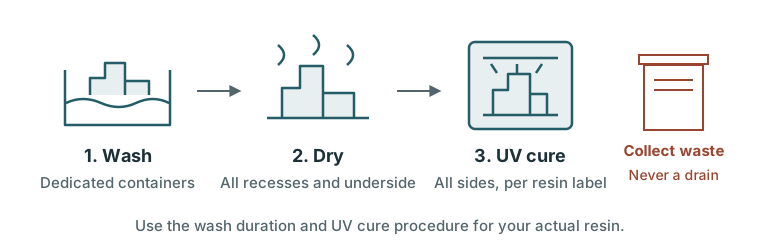
Wash → dry → cure. Collect every wash and rinse as resin-contaminated liquid. Select the picture to enlarge it. Ready when: the resin’s full post-curing procedure is complete. Rewash and investigate a sticky surface before finishing it.
-
Assemble sections and add a finish
For a single STL, inspect the roofs and base. For a ZIP, dry-fit the cured parts using
PRINT-AND-ASSEMBLY.txt: rows run south to north and columns west to east within the selected rectangle. Undo a documented 90° export rotation before joining the pieces. Match the closed cut faces before applying resin-compatible glue.Once cured, you can carefully smooth support marks using dust control and the resin’s protective measures. Test a compatible primer and paint on a spare piece. Brush painting is sufficient; an airbrush can apply thin coats in an appropriate extracted painting booth. Let coatings dry according to their labels.
Clean tools and the work area, close waste containers and return shared equipment. Follow the workshop’s disposal procedure for liquids and contaminated solids; filtering or UV exposure does not make wash water suitable for a drain.
Finished: a cleaned, fully post-cured Helsinki miniature, with all sections aligned if you printed a larger city.
If something goes wrong
- The model loads slowly or generation fails.
- Check the connection and data notice, retry, or choose a smaller area. Generate again after changing the selection.
- It fits in the generator but not in the slicer.
- Check millimeter import and the exact printer profile. Allow space for the chosen tilt, supports and raft; reduce the model or re-export smaller sections.
- Small buildings disappear or break.
- Use a smaller geographic area at the same printed size, inspect Thicken fine edges, and verify exposure and supports with a small test.
- The base warps or a section pulls free.
- Review orientation, underside support coverage and the resin profile with the operator. Retry a small piece before committing to a large plate.
- The surface stays sticky or develops a white film.
- Check the resin’s washing, drying and curing instructions. Inspect trapped liquid between buildings; painting over contamination does not fix it.