Snapmaker A350 · 40 W laser
Make your own wooden city map
Choose a place in City map, engrave its streets into plywood, then cut out the board. Follow these steps for your first map.
Open City map in a new tab- 10 clear steps
- SVG to plywood
- Your favorite place
Your workshop kit
- Snapmaker A350 with its 40 W laser, laser cutting platform and compatible enclosure/extraction setup.
- A computer with Snapmaker Luban, an internet connection and a supported way to transfer the laser job.
- Flat, identified, laser-suitable plywood larger than the finished map, plus a scrap of the same sheet for testing.
- Measuring tools, suitable hold-downs, a soft brush and fine sandpaper. Wood finish is optional.
Confirm the actual stock thickness, machine condition and usable work area with the workshop operator. Follow local shared-material payment and leftover-use rules before taking stock.
Before operating: complete the workshop’s machine induction. Use the required laser protection and extraction, keep the enclosure closed during a job, and stay with the machine. Locate its stop control before starting. See Snapmaker’s laser safety guidance and the A350 20 W / 40 W setup guide.
A simple first map
These are design choices for the example, not tested cutting settings.
- Place
- Helsinki
- Board
- Rectangle, 220 × 220 mm
- Lines
- Major roads, local streets, lakes and sea
- Border / rotation
- Single / 0°
-
Prepare a suitable piece of plywood
Measure the sheet’s thickness and check that it lies flat. Choose a piece with room around the 220 × 220 mm outline for the hold-downs. Reserve a matching scrap for the laser test.
Use only material approved for laser cutting. Identify any glue, coating or backing before machining; check an unknown sheet with the operator.
Ready when: you know the material and thickness, and the board plus hold-downs fit the usable bed.
-
Compose your map in City map
Open the generator and select Helsinki, or search for another city and choose a result. Under Size the board, choose Rectangle and enter 220 for both dimensions.
Drag the map to center your favorite area. Scroll or use the zoom buttons to choose how many streets appear. Under Choose the lines, start with major roads, local streets, lakes and sea. For a simpler first test, turn off building outlines and paths. Under Compose, keep Double and 0°.
Try Gallery for a larger city name and finer water hatching, or Classic for the original compact label. Both styles change the downloaded engraving too. Your chosen map layers, border and custom text stay in place when you switch styles.
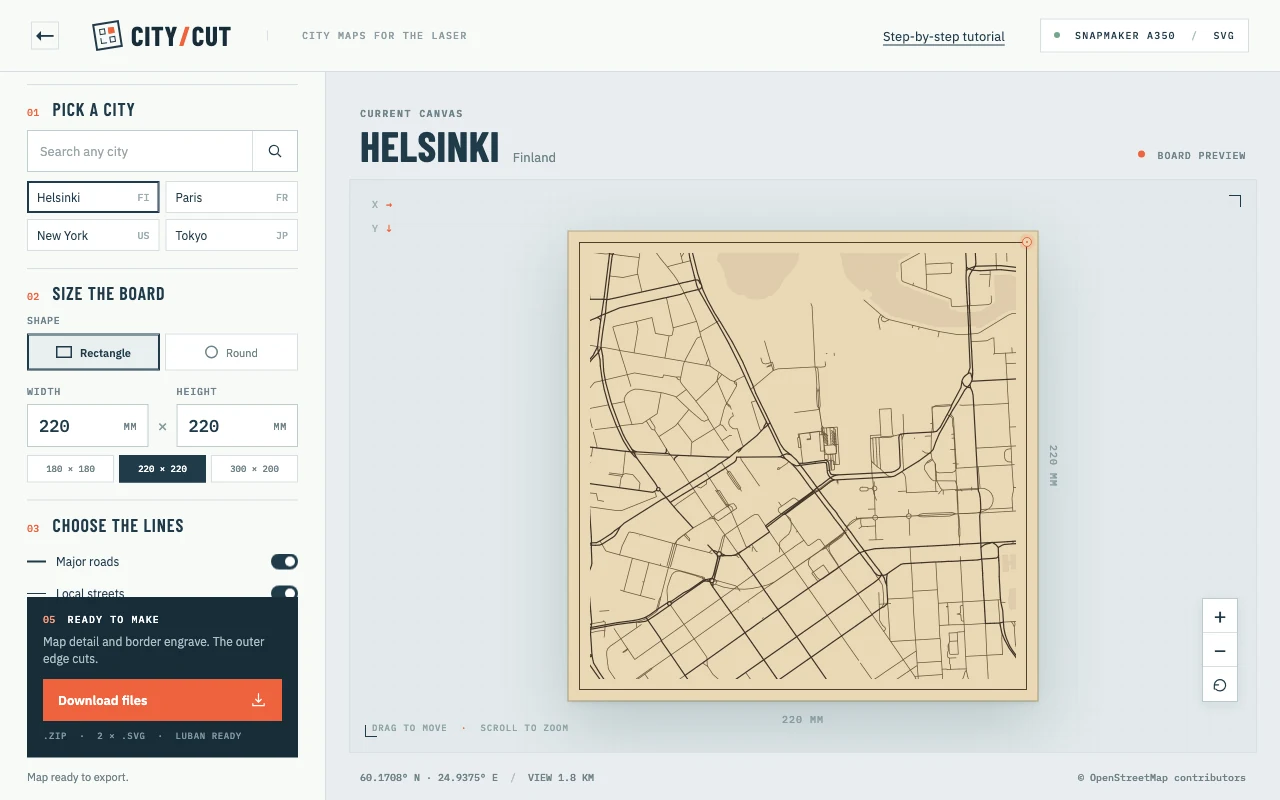
The controls are on the left; the board preview is on the right. Select the picture to view it at full size. Ready when: the preview shows the area and lines you want, and the status says the map is ready to export.
-
Download and unzip the project
Click Download files. Extract the ZIP into a project folder. It contains an
01-…-engrave.svg, an02-…-cut.svgandREADME.txt.The first SVG contains the streets, water hatch lines and inset border. The second contains only the outside cut. Keep the two files separate throughout the Luban setup.
-
Import both SVGs into Luban
Open Luban, choose a Laser project and select the A350 with the installed 40 W module. Use the flat 3-axis workflow for this board; the rotary attachment is unnecessary.
Set the job’s work size to your actual material and choose a work origin you can reproduce on the machine. Import the engraving SVG as a Vector object, then import the cut SVG as a second object. Luban’s labels may differ by version; its laser workflow reference shows job setup and object import.
-
Check the scale and align the centers
Select the cut object. Its outside dimensions should be 220 × 220 mm. Then check the engraving object without resizing it.
The engraved frame is 5 mm inside each edge. If Luban measures the visible paths rather than the SVG canvas, the engraving bounds will read 210 × 210 mm. That is correct. Stretching them to 220 mm would move the map and border too close to the cut.
Use Luban’s center-alignment controls, or set both objects to the same center coordinates. Move them together to the desired job position. Check the overlay before creating toolpaths.
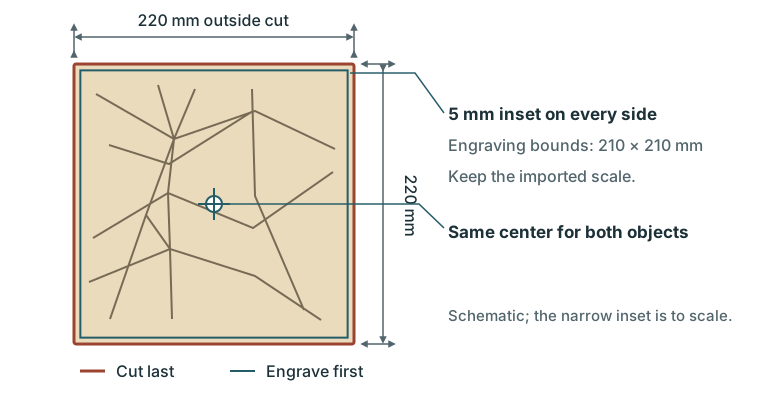
Both objects share a center. The outer cut and inset engraved frame have different dimensions by design. Select the picture to enlarge it. Ready when: all engraving sits inside the cut and both objects have the same center.
-
Create an engraving toolpath and a cutting toolpath
Select only the engraving object and create a toolpath named 1 — Engrave map. Use the vector On the Path method: City map already draws water as individual hatch lines.
Select only the cut object and create 2 — Cut outline, also tracing the path. Keep the engraving above the cut in the processing list. The outside edge must run last so the board remains held in position while the detail is engraved.
Set speed, power and passes separately for the two operations using the next step. Preview the toolpaths: streets and water should mark the surface, while only the outer outline cuts through. See Luban’s vector methods and processing order.
-
Find your settings on a matching scrap
Use Luban’s Material Test or a small separate test project. Start from an operator-approved profile for the installed module and the measured plywood thickness. Test a few engraved lines and a small cut shape on the matching scrap.
Inspect the result after the job stops: the lines should be readable without cutting through, and the cut shape should release cleanly. Adjust and repeat if needed. Record the successful speed, power, passes, focus and air-assist choices, then apply them to the corresponding map toolpaths. For 40 W cutting, confirm the module’s air-assist setup with the operator.
Ready when: both operations work on the actual stock. The generator does not supply a tested machine profile.
-
Secure the sheet, focus and check the boundary
With the machine safely stopped, clean debris from the laser platform and secure the sheet flat. Keep hold-downs outside every toolpath and the head’s travel area.
Follow the 40 W module’s touchscreen procedure to set material thickness/focus and the same work origin used in Luban. Transfer the generated G-code using the machine’s supported method. Run its boundary check according to the manual, then confirm the full outline stays on the sheet and clears the hold-downs. Close the enclosure and enable extraction before starting.
Ready when: the boundary, focus, origin, toolpath order and extraction are checked.
-
Engrave the map, then cut the outside edge
Start the checked job and remain at the machine. The engraving runs first, followed by the cut. If flames appear or the machine behaves unexpectedly, stop it and follow the workshop’s response procedure. Snapmaker lists the stop conditions.
Wait for all motion and laser operation to finish before opening the enclosure. Allow extraction to clear the smoke. If the outline has not released, keep the sheet in place and consult the operator before another controlled pass; moving it loses alignment.
-
Clean up and finish the board
Remove the released board once it has cooled. Brush away loose residue. Lightly sand the cut edges; test any sanding on a scrap before touching the engraved face so you preserve the fine streets.
If you want a protective wood finish, test it on the engraved scrap first and follow the product’s drying instructions. Return usable offcuts according to workshop rules, clear the platform and save your Luban project with the stock thickness and settings.
Finished: a wooden map with engraved detail and a clean outside edge.
If something goes wrong
- The download button is unavailable.
- Wait for the map to finish loading and stop moving it. Check the internet connection and enable at least one line layer.
- The border sits too close to the edge.
- Reimport the original SVGs, verify the 220 mm cut and 210 mm engraving bounds, then center-align them without stretching the engraving.
- The lines are too crowded.
- Show fewer layers or zoom in on a smaller geographic area, then export again.
- The cut does not go all the way through.
- Recheck flatness, thickness, focus and the scrap test with the operator before changing the job settings.